The Venv Forge
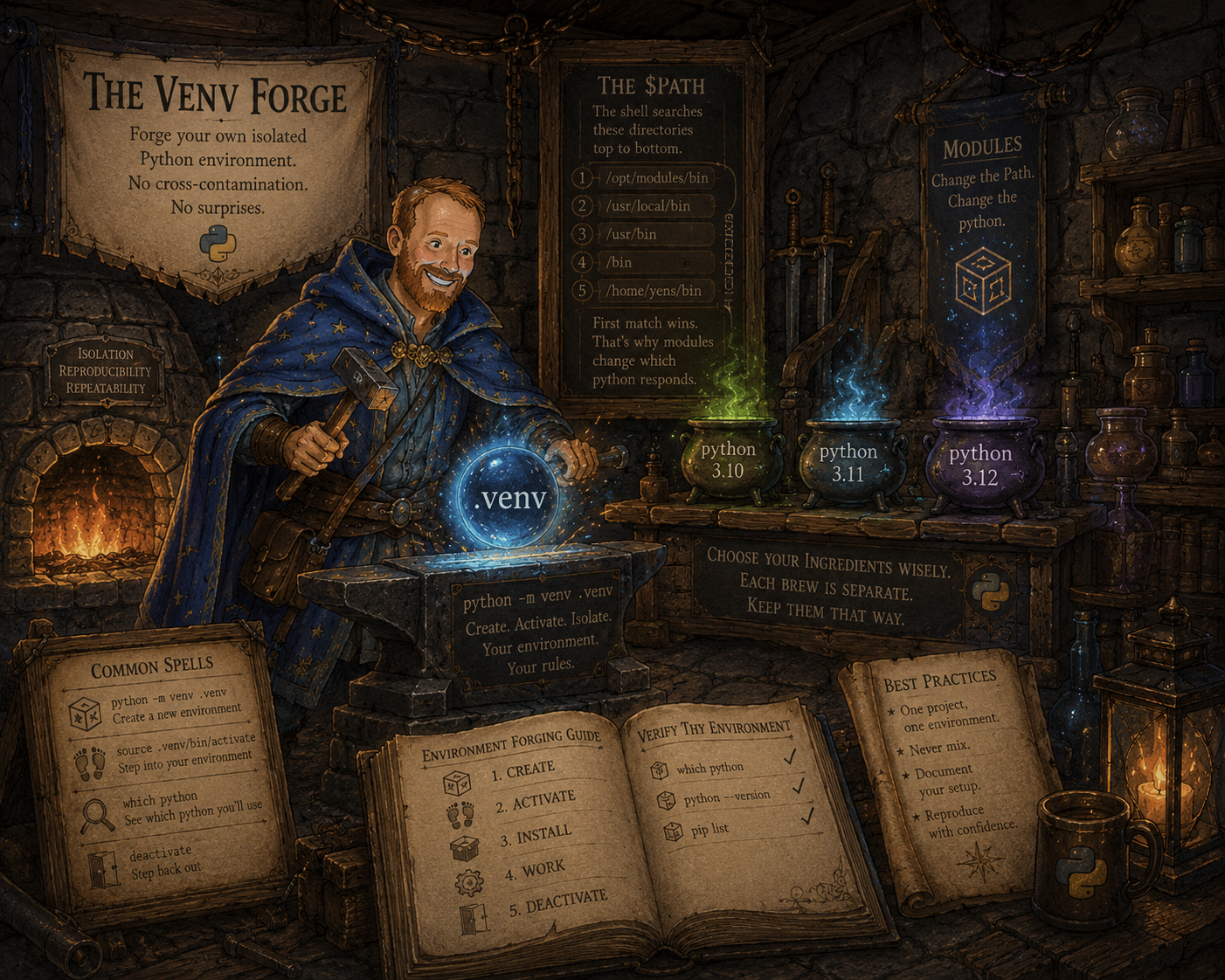
A virtual environment is a sealed Python of your own: its own interpreter and its own installed packages, isolated so one project’s dependencies never collide with another’s. You’ll forge one with python3 -m venv, then activate it — which simply prepends its bin/ to your $PATH, the same trick module load played in The Path — install the packages this course needs, and register it as a named kernel so JupyterHub notebooks can use it. Finally you’ll capture the whole environment as a requirements.txt recipe: the one file that lets a collaborator, or future you, rebuild your exact setup and reproduce your results on any machine. One project, one environment.
🗡️ Main Quest
Quest: Create a Python virtual environment on the Yens, activate it, install packages, and connect it to JupyterHub as a named kernel.
🖊️ There Has Been a Switch Up
By now you should have two terminals open: a JupyterHub terminal and your login (SSH) shell. They look identical. Are they running the same Python?
Practical Exercise
In your JupyterHub terminal, install a package:
pip install seaborn
Then start Python in that same terminal and import it:
python3
import seaborn # this works, seaborn is installed here
Now try the exact same thing in your login shell. This time import seaborn fails with ModuleNotFoundError.
❓ Same command, same package name — so why would import seaborn work in one terminal but not the other? Think it through before you reveal the answer.
💡 Answer — click to reveal
The two terminals are using different Pythons, each with its own set of installed packages. pip install seaborn in the JupyterHub terminal installed it for that Python only — your login shell runs a different Python that never got it. That is the problem this room solves: stop leaving your environment to chance and forge one you control.
Step 1: Create a Working Directory and Venv
In your Jupyter terminal (or SSH terminal), move into your cloned repo and make a folder for today’s work:
cd ~/gsb-research-computing-ai-skills
mkdir -p day2
Now forge the virtual environment at the repo root, using the system Python:
/usr/bin/python3 -m venv .venv
💡 This single
.venvat~/gsb-research-computing-ai-skills/.venvis the environment you’ll use for the rest of the course, and it’s the exact path Days 3 and 4 activate. (Potion Brawl in Step 6 is a separate project, so it gets its own venv, which is the “one project, one environment” rule in action.)
Step 2: Activate and Explore the PATH Change
source ~/gsb-research-computing-ai-skills/.venv/bin/activate
Your prompt now shows (.venv), meaning you are inside the environment. Check what changed:
echo $PATH          # .venv/bin is now at the front
which python3       # now points inside .venv/
Try deactivating and checking again:
deactivate
which python3       # back to system python
echo $PATH
Reactivate:
source ~/gsb-research-computing-ai-skills/.venv/bin/activate
💡 The
activatescript works by prepending.venv/bin/to your$PATH, the same mechanism asmodule loadfrom The Path. Deactivating removes it.
🟢 Green sticky = my environment is up and running (my prompt shows
(.venv)) 🔴 Red sticky = I need helpPut a sticky note on your laptop lid so instructors can see where you are.
Step 3: Install Packages
With the venv active, install what the rest of the course needs. The repo already ships the list, so read it before you install anything:
cd ~/gsb-research-computing-ai-skills
cat requirements.txt
Eight packages, one per line. Install them all in one command:
pip install -r requirements.txt
-r means “read the packages from this file.” That flag is the entire reason a project ships a requirements.txt: the list lives in the repo, not in someone’s memory or a Slack message.
The same thing, the long way — click to reveal
Nothing magic is happening. -r only saves you from typing the names out, which you could do instead:
pip install openai python-dotenv pydantic pandas requests ipykernel jupyter matplotlib
Same packages, same environment at the end of it. The difference isn’t the install, it’s that the first version is written down. Install by hand today and next month you’re guessing which packages you used; a collaborator has no way to find out at all. You’ll write a requirements.txt of your own in Step 5, and rebuild a stranger’s project from theirs in Step 6.
Here’s what each one is for, and where you’ll meet it:
| Package | What it’s for | Where you’ll use it |
|---|---|---|
openai |
Calling the Stanford AI API Gateway | The Oracle’s Chamber, today |
python-dotenv |
Loading your API key from .env |
The Key Vault, today |
pydantic |
Validating the model’s output against a schema | The Oracle’s Chamber, today |
pandas |
Tabular data (numpy rides along with it) |
the Day 2 Challenge, then Day 3 |
requests |
Downloading filings over HTTP | Day 3’s batch extraction |
ipykernel |
Registering this venv as a JupyterHub kernel | Step 4, next |
jupyter |
The notebook machinery itself | Throughout |
matplotlib |
Plots | Day 3’s cluster usage data |
These land only inside this venv — not for anyone else on the cluster, and not for your own other projects.
Verify by testing in the venv terminal:
python3 -c "import dotenv; print('dotenv ok')"
Now deactivate and try the same import:
deactivate
python3 -c "import dotenv"    # should fail: not installed in system python
Reactivate when done testing.
Step 4: Register as a Jupyter Kernel
💡 What’s a kernel? A notebook in your browser doesn’t run any code itself. It ships each cell off to a kernel: a separate process running on the Yens that executes the code and sends the output back. The kernel picker in the top-right of a notebook is really a list of which interpreter you want on the other end of that connection.
- Kernels aren’t only Python. The name Jupyter comes from Julia, Python, and R, and the protocol is language-agnostic: R, Stata, Julia, and others all have kernels. A notebook is a front-end; the kernel decides what language the cells are written in. Run
jupyter kernelspec listin a terminal to see everything registered for you on the Yens.- The default Python 3 kernel is a shared, system-wide Python you don’t control. That’s the
import seabornmystery from the top of this room: a kernel you didn’t choose, with packages you didn’t install.- Registering your venv adds your Python to that list, so a notebook can use exactly the packages you installed in Step 3.
- One kernel per project is the same discipline as one venv per project. Switching kernels swaps the entire package set the notebook can see.
- A kernel is stateful and long-lived: it holds your variables in memory. If you
pip installsomething in a terminal while a notebook is running, that kernel won’t see it until you restart it (Kernel → Restart).
With the venv active, register it as a kernel JupyterHub can use:
python3 -m ipykernel install --user --name=gsb-ai-2026 --display-name "GSB AI 2026"
Now go to JupyterHub:
- Open your
day2/folder in the file browser - Create a new notebook and name it
venv_check.ipynb - Select “GSB AI 2026” as the kernel from the kernel menu
In the notebook, confirm the environment is active — that the packages you installed in Step 3 are importable from this kernel:
import dotenv
import openai
print("dotenv and openai are available!")
If this runs without error, your venv is correctly connected.
🟢 Green sticky = my notebook is running on the GSB AI 2026 kernel and both imports worked 🔴 Red sticky = I need help
Put a sticky note on your laptop lid so instructors can see where you are.
💡 Never commit a venv to git: it holds hundreds of megabytes of packages and machine-specific paths. The repo’s
.gitignorealready lists.venv/, so yours is covered.
Step 5: Share the Recipe, Not the Environment
You may need to share an environment with a collaborator or recreate it on another machine. Do not copy the venv folder itself: virtual environments contain machine-specific paths and can break when moved.
Instead you share the recipe: a text file listing the packages needed to run your code. In Step 3 you installed from one you didn’t write — we wrote it, and it came with the repo when you cloned it. That’s the normal case, and it’s the point: you inherited a working environment from a file. Now go the other direction and produce a recipe from the environment you just built.
With your virtual environment activated, ask pip what’s actually in it:
python3 -m pip freeze > requirements.lock.txt
cat requirements.lock.txt
That’s a lot more than the eight lines you installed from. pip freeze reports every package in the environment at its exact version, including the dozens nobody asked for — the dependencies of your dependencies. pandas alone dragged in numpy, pytz, and python-dateutil.
So you now have two files describing this same environment, written by different authors for different jobs:
| File | Where it came from | What it holds | What it’s for |
|---|---|---|---|
requirements.txt |
a human, by hand — here, us, when we built this repo | only the packages the project deliberately asked for | saying what the project needs |
requirements.lock.txt |
pip freeze, just now |
every package in the venv, pinned to an exact version | reproducing one specific environment, exactly |
⚠️ Freeze to
requirements.lock.txt, notrequirements.txt. You’re standing in the repo root, sopip freeze > requirements.txtwould overwrite the curated list the repo gave you in Step 3 — replacing eight readable lines with forty machine-generated ones, in a file that’s tracked by git. Different filename, no collision, both files kept.
On your own project you’d be the one writing the curated file, and it’s worth seeing how short it stays: you add a line when you deliberately reach for a new package, and you leave the transitive dependencies to pip. Which file to commit depends on what you’re promising a reader. Commit requirements.txt always — it’s the human-readable statement of intent, and it’s what a collaborator reads first. Commit the lock file too when a result has to be reproducible exactly — the numbers in a paper, a run someone might audit — because a package that silently went from 2.1.4 to 2.2.0 is a real way for a result to move.
To recreate the environment elsewhere, from either file:
/usr/bin/python3 -m venv .venv
source .venv/bin/activate
python3 -m pip install -r requirements.txt        # the packages the project asked for, at whatever's current
# ...or, for a bit-for-bit rebuild of this exact environment:
python3 -m pip install -r requirements.lock.txt   # every package, at the exact versions you had
Keep .venv/ out of git either way (it’s already in .gitignore).
Neither file copies data, API keys, notebooks, or Python itself. A recipe lists ingredients; it isn’t the meal.
Step 6: Rebuild a Real Project from Its requirements.txt
Step 3 already had you install from a requirements.txt — but that was this repo, whose environment we’d sized for you, in a room that told you exactly what to type. The real test is inheriting someone else’s project and having to make it run: you don’t know which packages it needs, you don’t know what versions, and “it works on my machine” is not a specification. All you should need is the code and its requirements.txt.
Your cloned repo includes one: Potion Brawl, a small simulation in which three potions interact rock-paper-scissors style until one of them takes over. It depends on numpy, scipy, matplotlib, plotly, networkx, and several others.
Move into the project and read its requirements:
cd ~/gsb-research-computing-ai-skills/data/potion_brawl
cat requirements.txt
That’s 13 pinned dependencies, each at an exact version. Nobody is expected to memorise a list like that; recording it in a file is precisely the point.
Create a separate environment for this project
Potion Brawl gets its own environment, independent of the one you built earlier: one project, one environment.
/usr/bin/python3 -m venv .venv
source .venv/bin/activate
pip install -r requirements.txt
A single command installs the full dependency set at the exact versions the author used.
.venv/and the project’soutput/folder are already in the repo’s.gitignore, so you won’t accidentally commit hundreds of megabytes of packages or generated artifacts.
Run it
python3 potion_brawl.py
The script prints a POTION BRAWL banner, a progress bar, and a populations table, then writes a fresh output/ folder:
| file | what it is |
|---|---|
brawl.gif |
top-down animation of the bouncing brawl |
populations.png |
stacked-area chart of the war over time |
law_of_the_brawl.png |
the 3-potion cycle diagram |
victor.txt |
the tick count and final tally |
lab_journal.pkl |
the save state: positions, velocities, and the random-number generator |
Confirm that the result is reproducible
Run it again:
python3 potion_brawl.py
The script finds lab_journal.pkl and resumes the same run. Because the journal restored the random-number generator’s state, the continuation is bit-for-bit identical to a run that was never interrupted. Copy the folder (code, requirements.txt, and output/lab_journal.pkl) to a new directory or a different machine, rebuild the environment from requirements.txt, and the run continues from exactly where it stopped.
This is the practical point of the room. In research it is the difference between:
- “It ran last spring on my laptop”, where neither a collaborator nor future-you can reproduce the number in the paper; and
- “Here is the code and
requirements.txt“, where a collaborator, a reviewer, or the cluster rebuilds your environment and gets your result.
Your code plus a recorded environment produces the same result for anyone, on any machine.
💡 There’s also a notebook version with the figures inline. With
.venvactive, register it as a kernel:python3 -m ipykernel install --user --name potion-brawl --display-name "Potion Brawl (venv)"Then open
the_alchemists_lab.ipynbin JupyterHub, choose the “Potion Brawl (venv)” kernel, and Kernel → Restart & Run All.
Side quests
Finished early? Try any of these.
Side quest — Find Where Kernels Live
A kernel is just a folder on disk. Track yours down:
jupyter kernelspec list
This prints every registered kernel and its path (a --user install like yours lands in ~/.local/share/jupyter/kernels/). ls the GSB AI 2026 kernel’s folder and open its kernel.json. Notice it points straight at your venv’s Python. That link is the whole trick behind connecting a venv to JupyterHub, and it’s why deleting a venv leaves a broken kernel behind until you remove its folder too.
Side quest — Why You Can’t Copy a Environment
Step 5 said never to copy a venv folder. See for yourself why. Peek inside your environment:
ls -l ~/gsb-research-computing-ai-skills/.venv/bin/python
cat ~/gsb-research-computing-ai-skills/.venv/pyvenv.cfg
The python inside a venv is just a symlink back to one specific system Python, and pyvenv.cfg hardcodes that interpreter’s path. Move or copy the folder to another machine (or another user’s account) and those paths point at nothing. That is exactly why you rebuild from requirements.txt instead of copying the environment.
🧠 Skills Learned
- A virtual environment is an isolated Python installation: packages installed in one venv don’t affect any other project
source .venv/bin/activateprepends.venv/bin/to$PATH, making the venv’s Python the first match- JupyterHub kernels are just named Python environments: you can have one per project
- Never commit
.venv/to git: it’s too large and machine-specific - A
requirements.txtlets anyone rebuild a complex environment (exact packages and versions) from a single command, which is what makes your research reproducible