Command Line Basics
This section introduces the terminal: what it is, why researchers use it, and the core commands for navigating and organizing files. Master these basics and any Unix system — a cluster, a remote server, an HPC node — will feel familiar.
The Terminal
A terminal is a text interface to your computer. Instead of clicking icons, you type commands. It is how researchers talk to servers, automate repetitive work, and do in seconds what a mouse would take days to do.
Open yours now:
- Mac: Press
Cmd+Space, typeTerminal, press Enter. - Windows: Download and install Git Bash, then open “Git Bash” from the Start menu.
You should see a blinking cursor. That is where you type commands.
🟢 Green sticky = I’m done and ready 🔴 Red sticky = I need help
Put a sticky note on your laptop lid so instructors can see where you are.
Why This Matters
With a terminal open, here is what you can now do:
| GUI (Finder / Explorer) | CLI (Terminal) | |
|---|---|---|
| Speed | Click → drag → drop, one file at a time | 300 files moved in one second |
| Navigate | Browse folders by clicking | cd, ls, pwd — anywhere, instantly |
| Organize | Rename files one by one | Wildcards sort an entire dataset at once |
| Power | Limited to what the app exposes | Run scripts, schedule jobs, automate anything |
And later this morning, when you SSH into the Yens, every command you learn right now runs identically on a machine 500× more powerful than your laptop:
| Your laptop | Stanford Yens | |
|---|---|---|
| Cores | ~8–16 | 32–512 per node |
| RAM | ~8–32 GB | 250 GB – 3 TB per node |
| Commands | $ ls $ cd $ pwd |
$ ls $ cd $ pwd |
| Access | direct | ssh SUNetID@yen.stanford.edu |
Same commands. More power.
Class discussion — file organization
You have been working on your research projects for about a month. Before we go further:
- What kinds of files do you actually have? (raise your hand — we will whiteboard this)
- Where do they live right now?
- What happens when you need to find something from three weeks ago?
One example structure (expand after discussion)
Organizing files is not a rule for its own sake — it is what makes your work reproducible, shareable, and recoverable when something goes wrong. Here is one common structure for a research project:
One project folder, four separate jobs: keep raw data untouched, your code in one place, the results your code regenerates in another, and a README that explains it all — so nothing important ever gets mixed up or overwritten.
There are many ways to organize files — this is one example. What matters is that the structure is consistent and that raw data is never mixed with outputs.
Exercise
Your terminal is open. In this exercise you will use the command line to find where you are, move around the file system, and create and delete files and folders.
Goal: Use the command line to navigate your file system and reorganize a directory of files — without touching a mouse.
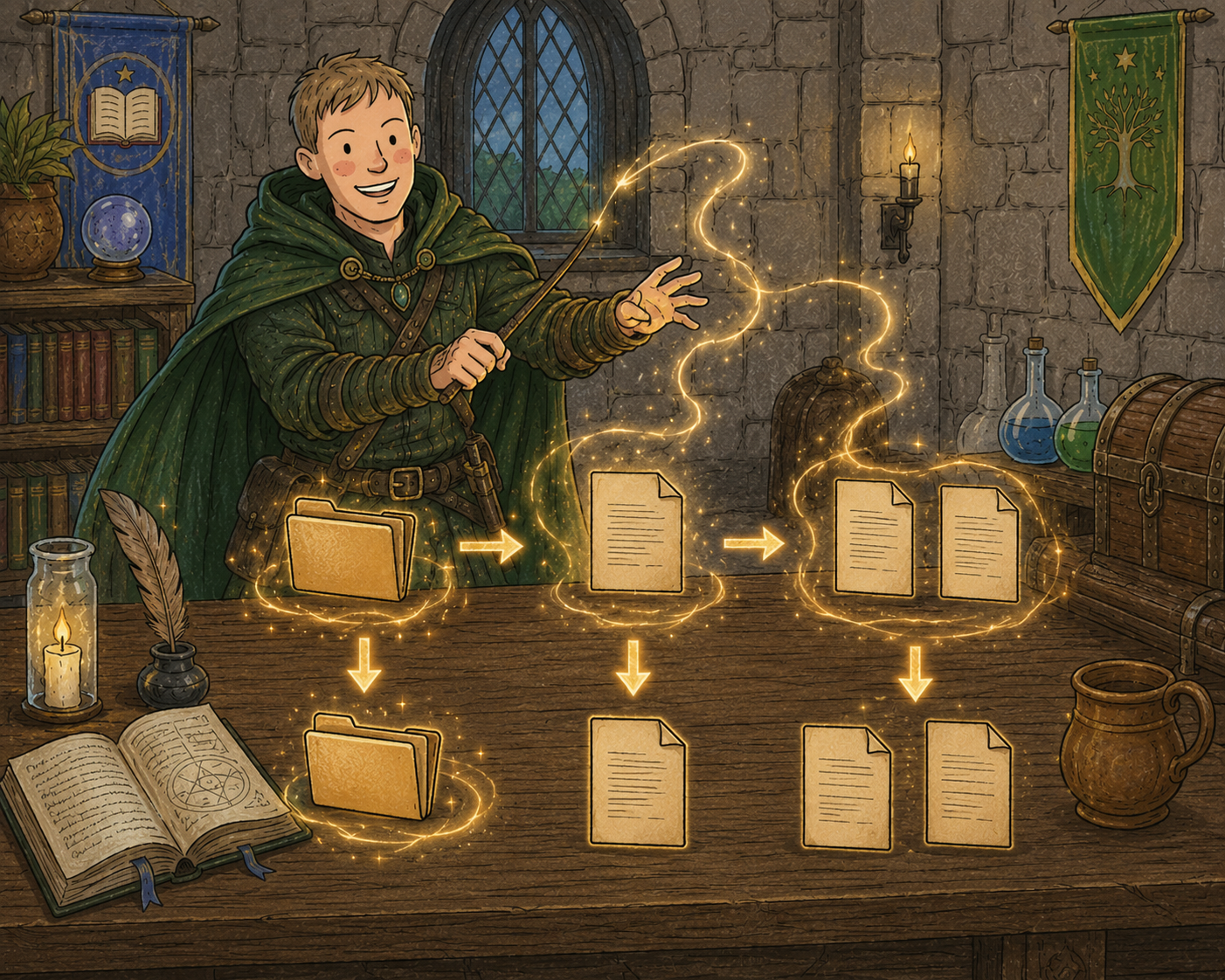
Everything you’d normally do by clicking and dragging — making a folder, creating a file, copying it — you’re about to do by typing. Same result, no mouse.
Investigation
Find your current working directory and list the files in it.
pwd
ls
pwd— print working directory: where you are right nowls— list files and directories here
Reading the code blocks in this course. Commands come first, in a grey box; what each one does is explained underneath. Copy the box, run it, then read the list to see what happened.
Later pages sometimes put a short note inside the box instead, after a
#. Everything from the#onward is written for you and is not part of the command, so type or paste only what comes before it. On a Mac the Terminal’s shell (zsh) won’t accept those notes at the prompt — paste one and you’ll get a complaint liketoo many arguments. Nothing is broken; just re-run without the#part.
Now look for hidden files — files whose names start with a dot are invisible to a plain ls:
ls -lah
A flag modifies the behavior of a command. -lah is three flags combined into one:
-l— long format: one file per line, with details-a— all files, including hidden ones-h— human-readable file sizes
Together they tell ls to show everything, in detail, with file sizes you can actually read. You can look up any command’s flags by searching online — for example, “ls command flags”.
Tab completion: Start typing a filename or path and press
Tab— the shell completes it. PressTabtwice to see all matches. Use it constantly; it prevents typos and saves time.
Movement
Use cd to change directories. ~ is your home directory; .. means one level up.
cd ~/Desktop
pwd
cd ..
pwd
cd ~/Desktop— go to your Desktop. Once you typeD, pressTabto autocomplete; pressTabtwice to see all options if nothing completespwd— confirm where you landedcd ..— go up one levelpwd— confirm you moved up
A Mac may ask permission the first time. A box appears saying “Terminal would like to access files in your Desktop folder.” Click OK — that is macOS checking that you meant to let your own shell see your own files. If you click Don’t Allow,
cd ~/Desktopandlswill come up empty. (You can change your mind later under System Settings → Privacy & Security → Files and Folders.)
Creation
Create a new folder on your Desktop, create a file inside it, and duplicate it.
mkdir -p ~/Desktop/spell_chamber
cd ~/Desktop/spell_chamber
touch scroll.txt
cp scroll.txt scroll_copy.txt
ls
mkdir -p— create a new folder. The-pflag makes any missing parent folders too, and stays quiet if the folder already exists — so the command is safe to run twicecd— enter ittouch— create a new, empty filecp— make a copy of that filels— confirm both files are here
Deletion
Clean up — remove everything you just created.
⚠️
rmis permanent. There is no undo, no trash can. Double-check what you are removing before you run it.
rm scroll.txt
rm scroll_copy.txt
rm -r ~/Desktop/spell_chamber
rm scroll.txt— remove the filerm scroll_copy.txt— remove the copyrm -r— remove the folder and all its contents (-r= recursive)
🟢 Green sticky = I’m done and ready 🔴 Red sticky = I need help
Put a sticky note on your laptop lid so instructors can see where you are.