Connecting to a Cluster
SSH lets you connect from your laptop to a remote computer and run commands there as if you were sitting at it. In this section you will learn what a remote server is, why researchers use one, and how to log in to the Yens cluster.
Why Use a Server at All?
Your laptop is fine for writing code and running small tests. But research computing regularly runs into limits that a laptop cannot handle:
| Situation | What happens on a laptop | What happens on the Yens |
|---|---|---|
| Dataset is 80 GB | Out of memory, script crashes | Loads fine — 250 GB–3 TB RAM per node |
| Analysis takes 12 hours | Laptop sleeps, WiFi drops, run dies | Job keeps running — always on, always connected |
| Need to run 100 jobs in parallel | One at a time, ties up your machine | Submit all 100 at once via the scheduler |
| Data is restricted (IRB, NDA) | Must stay on Stanford systems | Yens are Stanford-managed infrastructure |
| Collaborating with your PI | “Can you send me the data?” | PI already has access to /yen/projects/ |
The Yens are available to all researchers at GSB — faculty, PhD students, and pre-docs alike. Today we learn how to use them effectively.
“My regression on the full sample took 14 hours. My laptop died at hour 6. I lost everything. Two days later I reran it on the Yens and went to sleep. It finished while I was gone.” — Ben
What Is a Remote Server?
Your laptop is powerful but limited: one machine, one location, and it has to be open and plugged in for work to run. A remote server is a computer you connect to over the network — it’s always on, more powerful than your laptop, and your work keeps running after you close the lid.
What are the Yens?
The Yens are a 17-node shared research computing cluster: 5 interactive nodes you SSH into directly, and 12 nodes accessible only through the SLURM scheduler (Day 3). All 17 nodes share the same file system — a file you write on yen1 is instantly visible on every other node.
Your laptop and the Yens are two separate computers; SSH is the connection between them. When you log in you land on one of the shared interactive Yens (yen1–yen5) — fine for light work. The powerful SLURM compute nodes come later, on Day 3, reached through a scheduler rather than directly. Whichever node you’re on, you see the same shared files.
ssh opens an encrypted tunnel: you type locally, commands execute remotely, output streams back to your screen. The interactive Yens are shared — per-user CPU and RAM limits are enforced automatically. See the current limits for details. For heavier jobs, the SLURM scheduler (Day 3) gives you dedicated compute nodes.
What’s inside a Yen server:
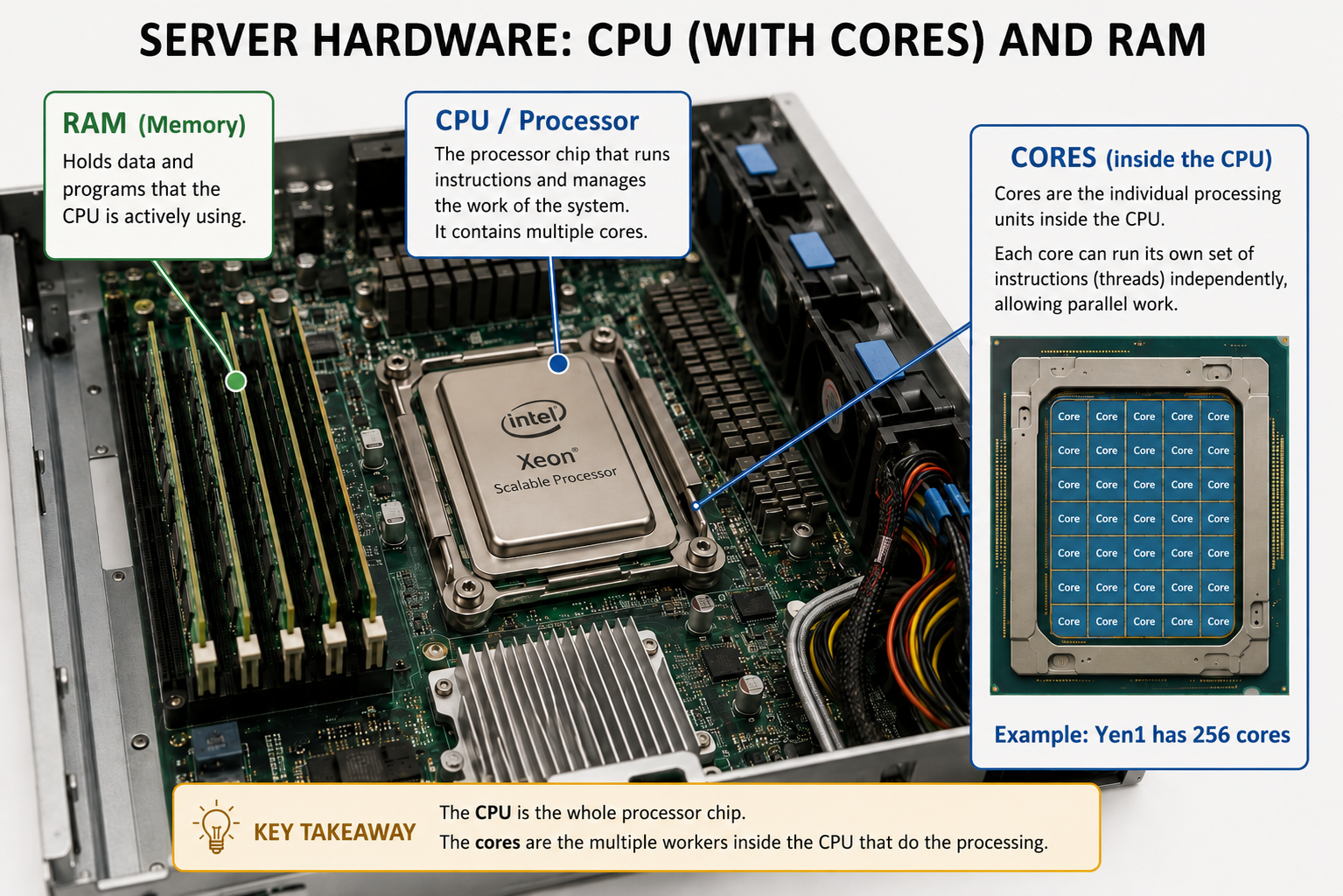
The CPU is the processor chip. Cores are the individual workers inside it — each core runs instructions independently, which is what makes parallel work possible. RAM holds the data the CPU is actively using. The Yen servers vary in size — see the current specs on RCPedia for details.
Exercise
Log in to the Yens for the first time and get your bearings.
Task: Connect to the Yens cluster over SSH, identify which interactive Yen you landed on, and read the login banner.
Connect:
ssh SUNetID@yen.stanford.edu
Replace SUNetID with your Stanford username. When prompted for your password, type your Stanford password (nothing will appear — that’s normal). You will be prompted for Duo two-factor authentication.
Identify your node:
hostname      # e.g. yen1, yen2, yen3, yen4, or yen5
whoami        # confirm you are logged in as yourself
The Yens (yen1–yen5) are shared interactive compute servers. You land on whichever one the load balancer picks. They’re powerful, but shared — read the login banner when you connect, it describes current usage policies.
Read the banner, then look around:
ls ~                              # your home directory on the Yens
pwd                               # /home/users/SUNetID
ls /scratch/users/                # personal scratch — you will create your own folder here later
ls /yen/projects/                 # shared project storage
🟢 Green sticky = I’m done and ready 🔴 Red sticky = I need help
Put a sticky note on your laptop lid so instructors can see where you are.
Optional practice
Skip the repeated logins with SSH multiplexing
Every time you ssh to the Yens you re-enter your password and approve Duo again — tedious once you’re opening several sessions. SSH multiplexing keeps one authenticated connection open and reuses it for every later session to the same host, so you authenticate just once.
Set it up on your laptop (not the Yens) by adding this to ~/.ssh/config — create the file if it doesn’t exist:
Host yen yen? yen??
  HostName %h.stanford.edu

Host yen yen.stanford.edu yen? yen?? yen?.stanford.edu yen??.stanford.edu
  ControlMaster auto
  ControlPersist yes
  GSSAPIDelegateCredentials yes

Host *
  ControlPath ~/.ssh/%r@%h:%p
Then try it:
- Open your first connection as usual —
ssh SUNetID@yen.stanford.edu— and authenticate with your password and Duo. This becomes the shared “master” connection. - Leave it open, and in a second terminal run
ssh SUNetID@yen.stanford.eduagain. It connects instantly — no password, no Duo — because it’s reusing the first connection.
Full write-up: SSH Setup for the Yen Servers on RCpedia.