Profile
🔴 Red sticky = I need help. Put it up the moment you are stuck — an instructor will come to you.
🟢 Green sticky = I have done 1–4 and am moving on to the bonus work, and I am ready to help my table.
Computing Resources — A Quick Recap
Before we run anything, let’s make sure we have the vocabulary for the resources a program uses:
| Resource | What it is |
|---|---|
| CPU core | An individual worker that executes your code |
| RAM | Fast memory the CPU reads from while working |
| Storage (file system) | Where your files live — VAST on the Yens |
| Time | How long your script takes to finish |
The Mystery Script
You are going to run a script you have never seen before and work out what resources it uses — without reading the code. That is profiling: measuring a script’s time, CPU and RAM while it runs.
Task: Run
mystery_script.pyand measure its resource usage in real time using two terminals — both on the same Yen node.
Step 1 — Log in to a Yen through JupyterHub, and note which one.
Everything on this page runs in JupyterHub terminals — no ssh, and no Duo prompt.
-
Pick one of the five Yens and open its JupyterHub, then log in with your SUNetID:
-
Click the blue “+” to open the Launcher, then open a Terminal.
In that terminal, run:
hostname
Pick what it printed and every command on this page fills itself in, so you can copy them without editing. Both terminals have to be on that same node.
Step 2 — Open a second terminal beside the first.
Click the blue “+” again and start another Terminal. Then drag its tab to the right edge of the first terminal and drop it when the blue guide appears — JupyterLab splits the window and you get both terminals side by side.
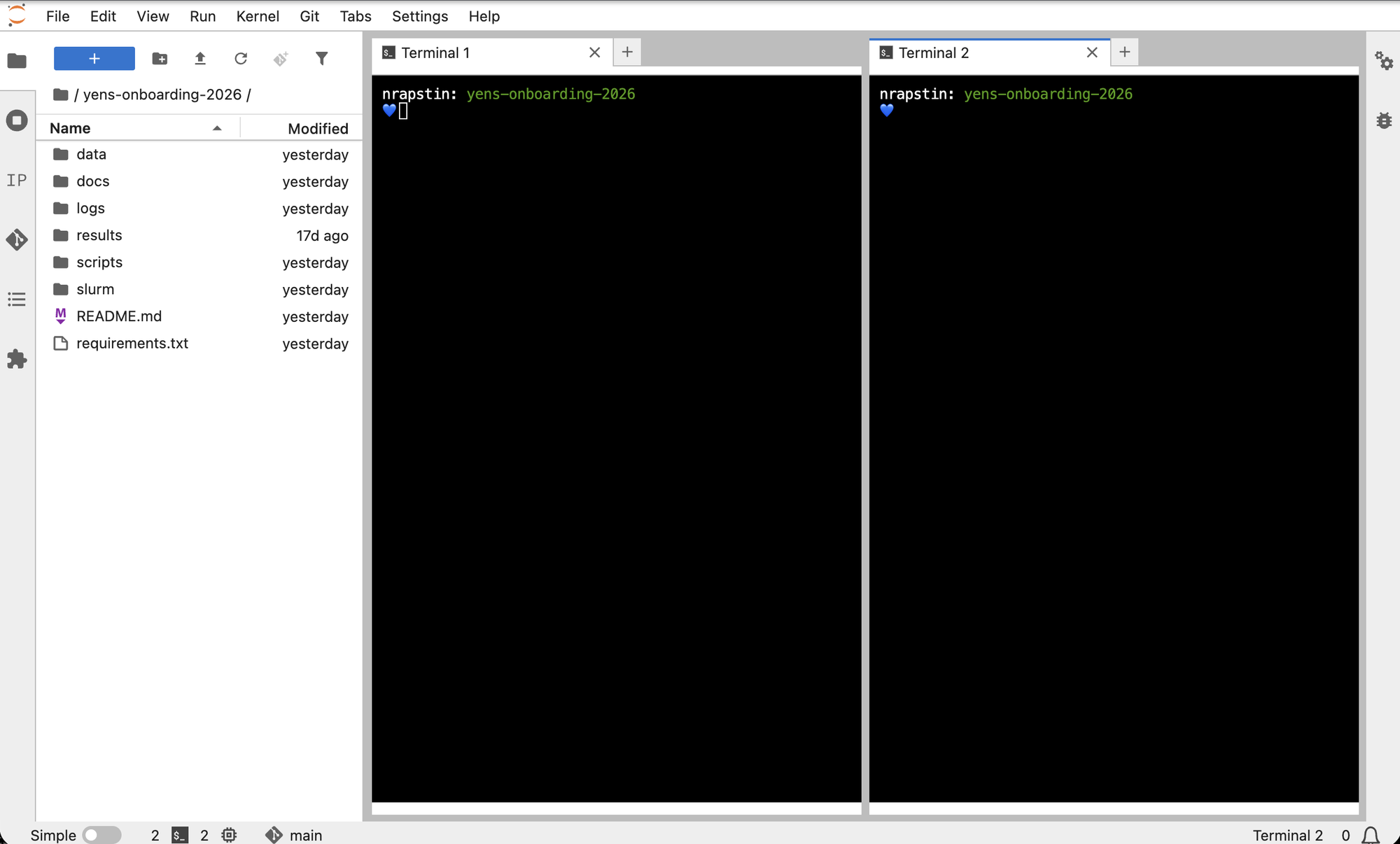
Seeing both at once is the technique. The script runs on the left while the numbers move on the right, live, and you watch it happen. Left as stacked tabs, one always hides the other, and you would be clicking back and forth guessing what changed while you were not looking.
Both terminals are on the node you picked, and you did not log in a second time.
Terminal 1 is the one that runs your code, so it needs your clone and the environment:
cd ~/yens-onboarding-2026
source .venv/bin/activate
Terminal 2 needs neither. It only ever watches — userload and htop are system tools,
and no code of yours runs there. So only Terminal 1’s prompt will start with (.venv), which
is how you tell the two apart at a glance for the rest of this page.
Step 3 — Start watch userload in Terminal 2 first, before running anything.
Terminal 2:
watch userload
-
userloadshows how many cores you’re using and what % of the node’s memory you’re holding — your total footprint on this node:SUNetID | 0.34 Cores | 0.00% Mem on YENNODE watchre-runs it every 2 seconds, so the numbers refresh live- It counts what you are running in a terminal — both of yours. A notebook is not a
substitute: kernels run with no terminal attached, so
userloadnever sees them. Run the script in a terminal, not in a notebook cell
What are we seeing? Right now — before you run anything — this is your baseline: Cores near 0 and % Mem near 0. That’s what an idle account looks like. Keep this terminal visible; you’ll watch these numbers move once the script starts. See the current per-user limits for how much CPU and RAM any one user can use on an interactive Yen. Those limits cover your notebooks and kernels too — userload not showing them does not make them free.
Step 4 — Now run the script in Terminal 1 and watch Terminal 2 change.
Terminal 1 — the one with (.venv) in its prompt:
time python scripts/mystery_script.py
What’s the
timein front?timeis a wrapper — it runs whatever command follows (python scripts/mystery_script.py) exactly as normal, then, once it finishes, prints how long it took. It doesn’t change what your script does; it just measures it. That’s where thereal/user/syslines below come from.
As it runs, watch Terminal 2: your Cores number climbs to about 4 — that’s the script’s footprint stacking on top of your baseline. If Cores climbs above 1, the script is using more than one core at once. When it finishes, it falls back toward baseline, and time prints three lines:
real    0m31.234s
user    2m0.682s
sys     0m2.212s
% Memwill not move, and that is correct. The four workers hold about 485 MB each, roughly 1.9 GB between them — which on a 1 TB Yen is 0.19% of the node.userloadgets its memory figure fromps, which reports one decimal place, so each worker rounds to0.0and the total reads0.00% Memthe whole way through. Cores is the number to watch here. For memory, readRESinhtopin Step 5 — and the fact that 1.9 GB is invisible as a share of this machine is worth sitting with: that is the scale you are sharing.
- real — wall-clock time: how long you actually waited
- user — CPU time your code consumed across all cores; if
user>real, the script used multiple cores in parallel - sys — CPU time spent on OS-level work (file I/O, memory allocation)
Step 5 — Run the script again, this time watching it in htop.
First, in Terminal 2, stop watch userload by pressing Ctrl+C. Then start htop, filtered to just your own processes:
htop -u SUNetID
The -u flag limits htop to your processes, so the hundreds of other users’ processes on
the node don’t drown yours out.
🖥️ Options to hide the header and make the display more compact
Some Yens have 256 cores, and if htop is drawing one bar per core the header fills the
window and pushes the process list off the bottom.
- H — hide threads, so each process is one row
- t — tree mode, which nests the workers a process spawned underneath it. Useful here, because that nesting is exactly what you are trying to count
To hide the header, swap the per-core meters for a single average bar:
- F2 — opens Setup, with Meters already selected on the left
- → to move into the Left column list
- ↓ to the CPU entry — it reads something like
CPUs (1/1) [Bar] - Delete to remove it
- → again to reach Available meters, then ↓ to CPU average
- Enter to add it back as one bar
- F10 to leave Setup
You only do this once — htop writes it to ~/.config/htop/htoprc and remembers it next
time. If your header already shows a single Avg[...] bar, it is set up correctly and you
can skip this.
Each row in htop is one process. The columns that matter:
CPU%— how hard that process is pushing.100%= one full core busy,200%= two cores, and so on — a single process reading over100%is spread across multiple cores.RES— the real RAM the process is actually using. Shown in KB by default, so9000≈ 9 MB; bigger values get anMorGsuffix (like111M).MEM%— that sameRESas a share of the whole node’s RAM. On a 1 TB node a few MB rounds to 0.0% — which is whyuserloadcan read0% Memeven though the process really is using memory.VIRT— ignore it. That’s memory the process reserved, not what it’s actually using.
Now, in Terminal 1, run the script again and watch your rows in htop light up:
time python scripts/mystery_script.py
As the script runs, watch new python rows appear — that’s it spawning work. Count them to answer “how many processes did it run?”
Answer each one from your own output, then open it to check.
1How long did it take, and how much RAM did it peak at?
Read them off your own two terminals — real from time in Terminal 1, and the peak RES
you watched in htop. You cannot get either by reading the code, which is the point of
profiling.
2How many cores did it use, and how many processes did it run?
About 4 of each. Roughly 4 Cores in userload, and about 4 python
processes in htop — one process per core.
3Serial or parallel, and how do you know?
Parallel. Open scripts/mystery_script.py and you will find
num_cores = 4: it deliberately starts four worker processes, one per core, which is exactly
what made it a multi-core program.
So the amount of parallelism is a choice in the code. Change that number and the processes and cores you see change with it.
The Batch Script
Task: Profile the real batch script on 10 filings using the same two-terminal technique.
Now apply the same technique to a real workload. scripts/extract_form_3_batch.py — committed in the repo, so everyone has it — runs the same Form 3 extraction you did on Day 1 with extract_form_3_one_file.py, but loops over many filings instead of one. Process 10 filings and profile it.
First, open the script so you know what you’re profiling — cat scripts/extract_form_3_batch.py (or open it in JupyterHub).
💡 Hint — what the script does
It loops over the filings in data/aws_links.csv, calls the API for each, and writes one JSON per filing to results/.
The script is set to process 10 filings (see NUM_FILINGS near the top — kept small so a stray run doesn’t fire hundreds of paid API calls).
First run — watch the load. Terminal 2 (start this first):
watch userload
Terminal 1 again — the (.venv) one; this script really does need the environment. Run it
and note the real, user, and sys times when it finishes:
time python scripts/extract_form_3_batch.py
Second run — watch the processes. Switch Terminal 2 to htop, then run the script once more so you can see the processes live:
Terminal 2:
htop -u SUNetID
Terminal 1:
time python scripts/extract_form_3_batch.py
Watch Terminal 2 as the 10 filings process one after another.
No need to clear
results/first. The script overwrites each file as it goes — there is no check for work already done, so the second run repeats all ten API calls whether or not the output is already sitting there.Worth noticing, because it is a real cost: a rerun after a partial failure pays for everything again. We will fix this later, in Part 2.
Reminder —
real/user/sys:
real— wall-clock time: how long you actually waiteduser— CPU time your code used across all cores (ifuser>real, it ran on multiple cores in parallel)sys— CPU time spent on OS-level work (file I/O, memory allocation)
Answer each one from your own output, then open it to check.
1You watched userload through the whole run. What did Cores and % Mem do?
Barely moved. Both sat near the baseline you noted before starting — Cores well under 1, % Mem showing 0. Ten filings went through and the display hardly changed.
2Ten filings took about 20 seconds, yet Cores stayed near 0. Where did the time go?
Into waiting on the Anthropic API. The job sends a filing, then sits idle until the answer comes back — so it barely touches the CPU. That is the opposite of the mystery script, which was CPU-bound: four cores doing real math, with nothing to wait for.
The time output is the fingerprint. A typical run: real 0m22.5s, user 0m1.9s,
sys 0m0.5s — roughly 2 seconds of actual work against 20 of waiting. Whenever real ≫ user,
you are looking at a job that mostly waits.
Per-filing times vary too: each takes however long the API takes, so ten filings is not exactly ten times one.
Every script has a bottleneck. When you optimize code, optimize the bottleneck first:
| Bottleneck | The job is waiting on | Typical fingerprint |
|---|---|---|
| CPU-bound | computation — cores doing math | user ≥ real, cores pegged |
| I/O-bound | the file system — reading and writing data | low CPU, and it gets worse with more files |
| Memory-bound | RAM it does not have, so it keeps returning to storage | RAM at the ceiling, and the job crawls |
| Network-bound | a reply from another machine — here, the Anthropic API | real ≫ user, cores near 0 |
3% Mem reads 0 as well. Does that mean the script uses no memory?
No — two things are true at once. The script really does hold little memory, because it
handles one filing at a time rather than loading all ten. But even a few hundred MB would still
print 0%, because that column measures your share of the node’s whole ~1 TB. On a node that
big, almost any single job rounds to zero.
When you want the real number, read RES in htop instead.
4Serial or parallel — and which number in your own output settles it?
Serial. A single python process in htop, and userload under 1 Core.
The timing agrees. user above real is what parallel looks like: the mystery script ran
real 0m31s against user 2m0s, because four cores were each clocking up CPU time while the
wall clock ran once. Here user came in far below real, so only one core was ever busy.
5The script sets OPENBLAS_NUM_THREADS=1. Why cap a library's threads on a 256-core node?
Because you are not allowed all 256. Libraries like NumPy and pandas try to speed up math by grabbing every core on the machine — 256 on Yen2, for example. But the Yens enforce per-user limits on how much CPU one person can use, so grabbing all of them does not help: it crowds a pile of threads onto the cores you actually have, which can make the job slower.
The habit: on a shared node, do not let a library grab the whole machine — keep its thread count inside your limits.
Finish all four pages before you start any bonus. The numbers you write down on one page are the inputs to the next, and Part 2 assumes all four are done.
⭐ Bonus — profile two more scripts
Bonus — Vectorized vs. Non-Vectorized
One quick way to speed up scientific Python is vectorization — doing the math on a whole array in one operation instead of looping element-by-element in Python. The array operation runs in fast, pre-compiled code, so it’s often 10–100× faster. We ship a script that computes the same sum of squares both ways — profile it and see the difference.
Terminal 1 — run it:
source .venv/bin/activate
time python scripts/vectorize_demo.py
Terminal 2 — watch the load while it runs:
watch userload
Both versions produce the identical result; the script prints how much faster the vectorized one was (often 10× or more). Notice the slow Python loop pins a core the whole time, while the NumPy version finishes almost before you can look at Terminal 2.
Bonus — Change the number of cores
Open scripts/mystery_script.py and change num_cores = 4 to a different number — try 1, or 8. Then profile it again with the same two-terminal setup: run time python scripts/mystery_script.py in Terminal 1, and watch it in Terminal 2 with watch userload (or htop -u SUNetID).
Document what changes:
- How many
pythonprocesses appear inhtopnow? - How many Cores in
userload? - Did the
real(wall-clock) time go up or down? - Does the resource usage match the number you set?
⭐ Bonus — explore real cluster usage data
You have just measured one script. A live Yen node is running dozens of other people’s processes at the same time, and reading a real snapshot of that is the fastest way to make the vocabulary concrete — what counts as a process, how one user’s footprint adds up, and why RAM in use and virtual memory reserved are different numbers.
Work through
Exploring Cluster Usage Data — a
real yenstop capture, explored with Claude.
⭐ Bonus — size up your own machine
Put your own machine’s numbers against a Yen node’s, and price the same work in the cloud. The written comparison is in Compute Environments.
Bonus — Know your own machine
Work with Claude to figure out how to check your own laptop’s CPU core count and RAM — tell it what operating system you’re on and have it walk you through finding each one. Then enter your specs below to see just how much bigger one Yen node is (yen1 has 256 cores and 1 TB of RAM).
Start Claude on your laptop, not on the Yens — otherwise it’ll report the Yen node’s specs (256 cores, 1 TB), not your own machine’s.
💡 Hint — what to ask Claude
You don’t need a fancy prompt. For example:
> Would you help me find the RAM and number of cores on my laptop?
Bonus — Price a cloud instance
Work with Claude to find on-demand pricing for a cloud VM comparable to a Yen node — 256 cores and 1 TB of RAM, for example on AWS. Then use the calculator below — enter the VM’s specs and the price per hour you found — to estimate what your Day 1 extraction job would cost to run there for an hour. Grant budgets aren’t infinite; this is a real judgment call you’ll make in your own research.
💡 Hint — what to ask Claude
You don’t need a fancy prompt. For example:
> Do you have on-demand VM pricing for a cloud VM (say AWS) with 256 cores and 1 TB of RAM?