2. Directories and File System Paths
Making and changing directories
lsis the name of a built in program that lists the contents of the current directory- To run it, type
lsin the command line and press enter:
- To run it, type
machine_name:~$ ls
- The program
mkdiraccepts one argument: a new directory name, and creates a new directory with that name in the current working directory:
machine_name:~$ mkdir test_dir
A shell program’s potentially multiple arguments are separated by spaces, not specified as a comma-separated list enclosed by parentheses.
- To change your current working directory, pass the name of a new directory to the program
cdas an argument:
machine_name:~$ cd test_dir
- After running the command above, the new command line prompt should list
~/test_diras the new working directory:
machine_name:~/test_dir$
File system paths
- The working directory
~/test_dirabove is an example of a file system path, a string that maps to a particular location on the file system.- Paths are strings of directory names separated by
/
- Paths are strings of directory names separated by
- Try making another directory inside
~/test_dircalledtest2, confirm you created the new directory insidetest_dirwithls, and then change directories to~/test_dir/test2:
machine_name:~/test_dir$ mkdir test2
machine_name:~/test_dir$ ls
machine_name:~/test_dir$ cd test2
- After running the last command above, your command line prompt should now look like so:
machine_name:~/test_dir/test2$
If we don’t put ~ or / at the beginning of the path to the new directory that we pass to cd, the cd program looks for the new directory relative to the current working directory.
Aside: escaping characters
- Suppose instead we had run the following commands:
machine_name:~/test_dir$ mkdir test 2
machine_name:~/test_dir$ ls
- We’d see that there are two directories named
testand2!- Remember, arguments are separated by spaces in shell programming, so
mkdirmakes as many directories as there are arguments.
- Remember, arguments are separated by spaces in shell programming, so
- To make a directory called
test 2(DON’T!), you have to escape special characters by prefacing them with a\or by enclosing the whole argument in single (') or double (") quotes:
machine_name:~/test_dir$ mkdir test\ 2
machine_name:~/test_dir$ mkdir 'test 2'
machine_name:~/test_dir$ mkdir "test 2"
- Escaping characters means telling the shell to interpret that character literally, rather than as something with programmatic meaning.
Relative vs. absolute file system paths
- Actually
~is a special file system shortcut or alias for another path; usepwdto see full current working directory:
machine_name:~/test_dir/test2$ pwd
The output of pwd is a path that starts with a /, so it’s an absolute path.
- The path
/points to thetopof the file system, i.e. the directory that contains all others (called the “root”). /is not the “home” directory for a user because files related to the operating system live in/that users shouldn’t (usually) touch.- Paths that don’t start with
/are relative paths; wherever they’re used (directly in the shell or in code), they start from the current working directory, not/.- The shell assumes paths that don’t start with
/are meant to be relative to the current working directory.
- The shell assumes paths that don’t start with
- The following file system diagram illustrates an example directory structure as a tree:
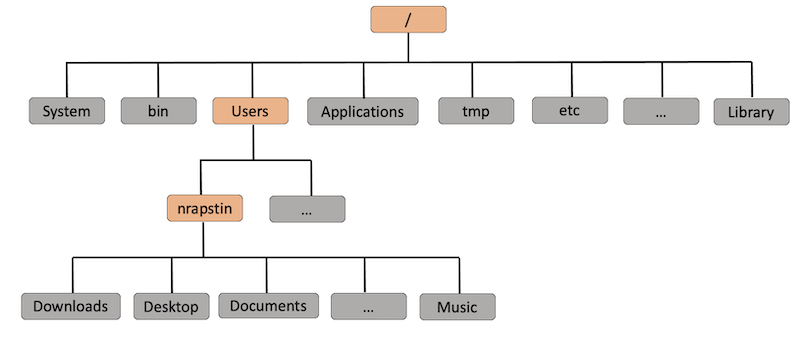
- The directories highlighted in orange form the absolute path
/Users/nrapstin, which is aliased by~for my machine (my “home directory”).
Relative path helpers
- If you use the special directory name
..somewhere in the path, it will replace the path up to the..with the “parent” directory of the directory before the..- E.g. the path
/this/is/a/path/..is equivalent to the path/this/is/a
- E.g. the path
- You can also use
lsto list the contents of any directory (not just the current one) by passing it a path as an argument; try passing it the path..:
machine_name:~/test_dir/test2$ ls ..
Since .. doesn’t start with /, the shell assumes the path is relative to the current directory, so the output should be the contents of ~/test_dir (i.e. the directory test2)