2. The Yen Servers
At the GSB, we have a collection of Ubuntu Linux servers (the yen cluster) specifically for doing your research computing work. As a PhD student, you, by default already have access to these servers. They are administered by the Stanford Research Computing (SRC) and located in Stanford’s data centers.
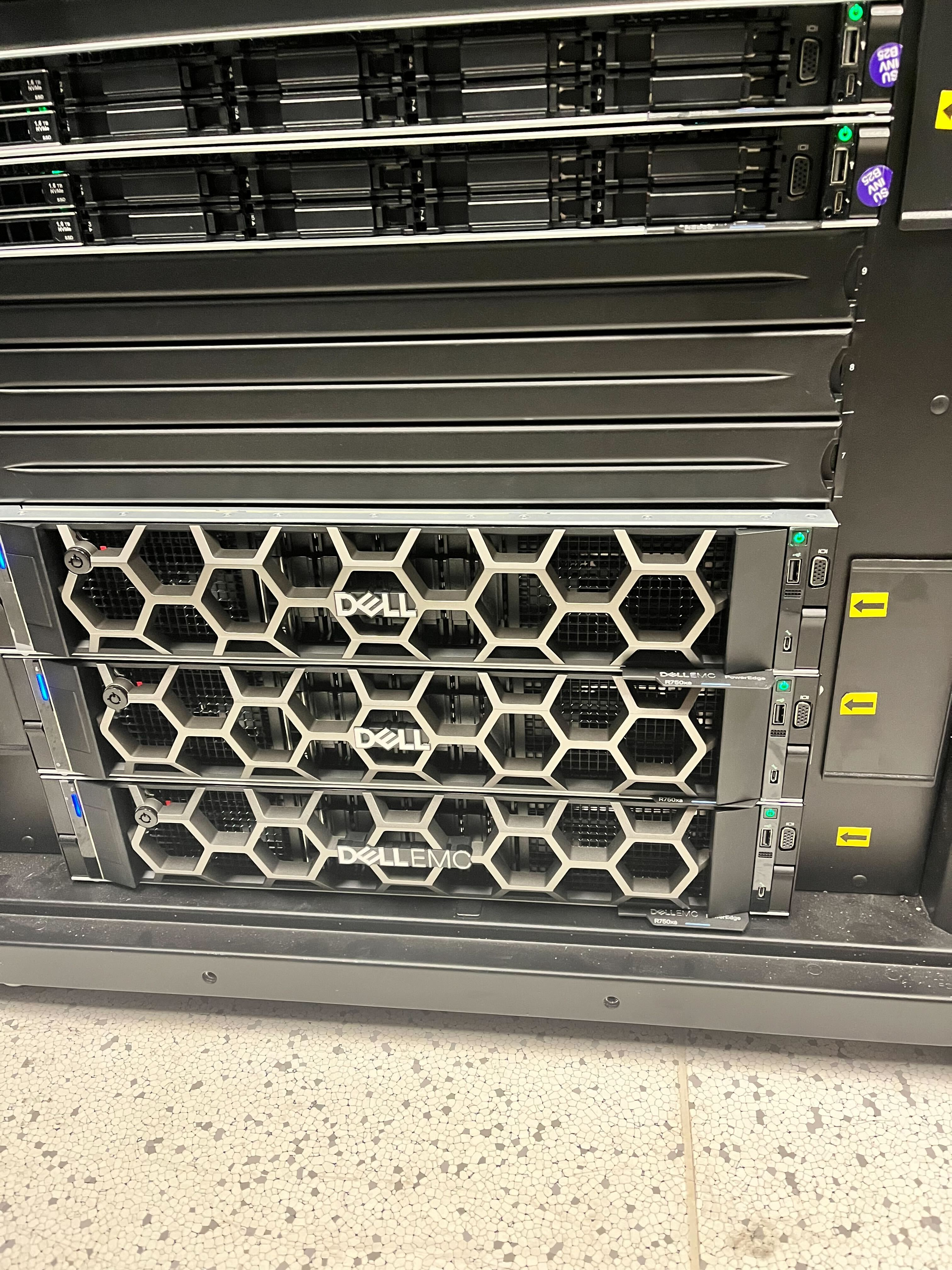
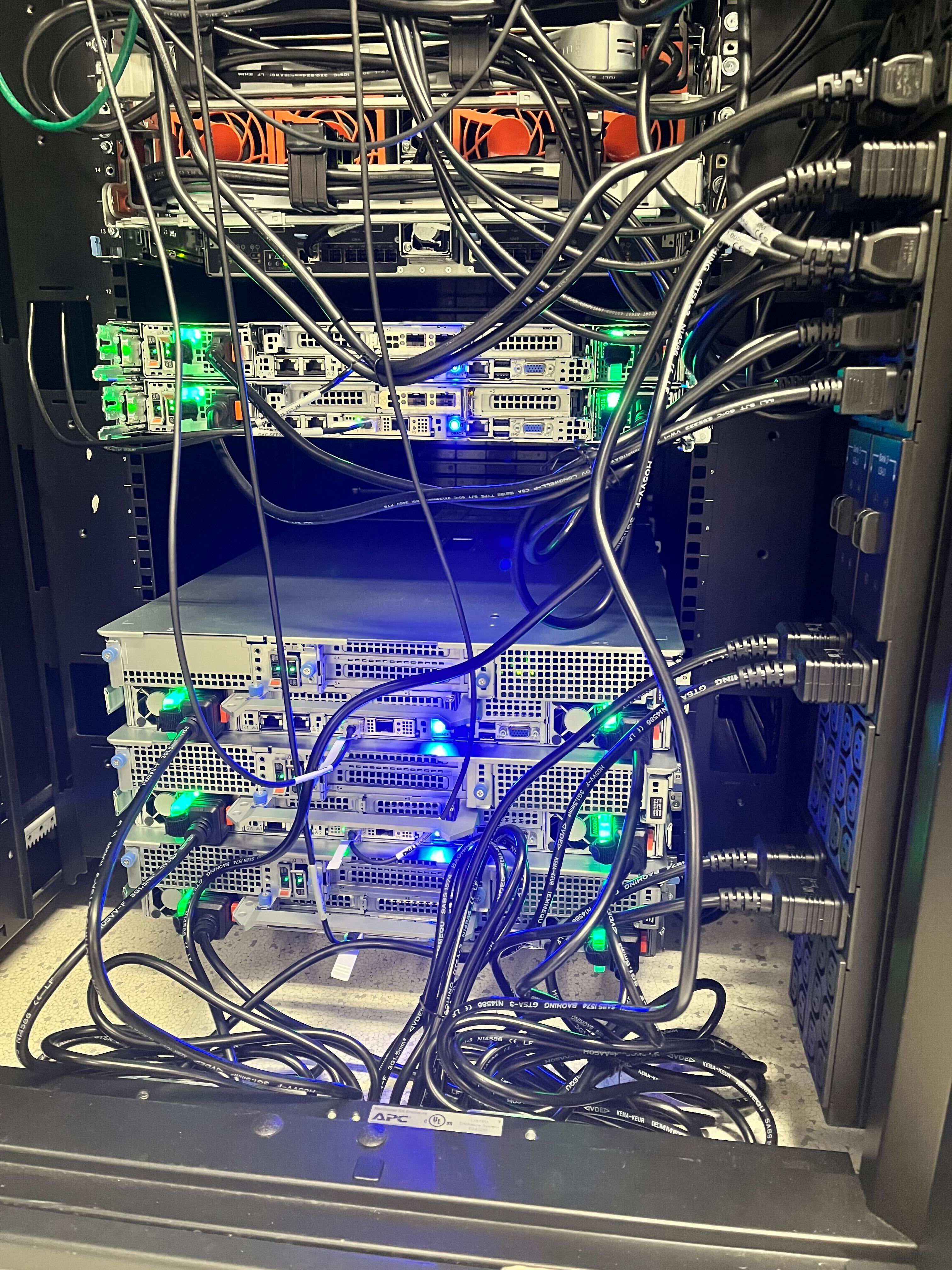
The yen servers are not designed for teaching or course work!
Yen Computing Infrastructure

In this session, we are using only the interactive Yens. Stay tuned for scheduled Yens after lunch.
Accessing other computers remotely
For the reasons mentioned earlier (datasets being too big, computer being too slow), researchers usually do work on large research projects on remote servers, not their own computers.
Typically, they interact with a remote server by accessing the shell on the server via a remote connection initiated by a shell command on their computer.
The DARC team at the GSB runs several servers dedicated to GSB research projects named Yens that have many more computational resources (e.g. storage, processing speed) than your computer.
Accessing the Yens
- To access the shell on a Yen server, use the command
ssh(which stands for secure shell):
machine_name:~$ ssh SUNetID@yen.stanford.edu
- The single argument to the
sshcommand above has two components:- The username on the remote machine, in this case
SUNetID, which you should replace with your actual SUNet ID - The server’s internet address, in this case
yen.stanford.edu
- The username on the remote machine, in this case
- In response, the Yen server will prompt you to type in your SUNet password in the command line; note that on the shell, passwords don’t appear at all when you type (not even dots, which give away the password length)
- When you’re done typing it, submit by pressing
<ENTER>
- When you’re done typing it, submit by pressing
- Once you enter your SUNet password, you should see the following two-factor authentication message:
(SUNetID@yen.stanford.edu) Duo two-factor login for SUNetID

Enter a passcode or select one of the following options:

 1. Duo Push to XXX-XXX-2686
 2. Phone call to XXX-XXX-2686
 3. SMS passcodes to XXX-XXX-2686

Passcode or option (1-3):
- For security, Stanford requires you to confirm logins with a second device
- If you haven’t already, we recommend following these instructions to set up Two-Factor Authentication with the Duo Mobile app
- If you’d rather use an alternative method, there are other options on this page
- After following the instructions to do two-factor authentication, you should see the following command line prompt:
SUNetID@yen4:~$
- The part of the command line prompt above containing the machine name now has two components:
- The part before the
@is your username on the Yens, which corresponds to your SUNetID - The part after the
@indicates which of the physical Yen servers you’re logged in to;- There are 5 physical Yen servers you can log into
ssh’ing into the addressyen.stanford.eduautomatically picks a server for you- To log specifically into Yen4, use
yen4.stanford.eduas the server address in yoursshcommand
- The part before the
The Yens’ file system: ZFS
- Although you are logged in to a particular Yen server, the file system called ZFS is shared across all of them
- The file system is the part of the operating system responsible for managing files and directories
Home directory
- When you log in to any Yen server, your working directory is set to your home directory on the Yens’ shared file system aliased by
~- if you run
pwd, you can see that~is an alias for the absolute path/home/users/<SUNetID>, as illustrated in the following file system diagram:
- if you run

- Your home directory is a good place to store small files like scripts and text files.
- It is not for storing large files or outputting large files to while working on a project, since its capacity is capped at 50 G.
- To see how much of your 50 G quota you’ve used, run the
gsbquotacommand:
SUNetID@yen4:~$ gsbquota
- Home directories cannot be shared (or used to collaborate on a project)
- Home directories are backed up as “snapshots”
Yen’s project directories
ZFS also has ~1 PB of high-performance storage that the DARC team can allocate in large quantities for all faculty and student projects
In particular, faculty and students can request the creation of a project directory of some size, which is also backed up, can store large files, and can be shared for collaborative work
- Faculty project directories are located at
/zfs/projects/faculty/<Faculty-SUNetID>-<Project-Name> - Student project directories are located at
/zfs/projects/students/<Student-SUNetID>-<Project-Name> - The following file system diagram illustrates where these directories are housed on ZFS:
- Faculty project directories are located at

- To check how much of the alloted storage quota for a project directory has been used up, run the
gsbquotaprogram with the path to the project directory as an argument:
SUNetID@yen4:~$ gsbquota /zfs/projects/faculty/<Faculty-SUNetID>-<Project-Name>
Scratch spaces
- Yens have a shared temporary storage on ZFS at
/scratch/shared /scratch/sharedis ~100 TB and is a good place to store temporary files if you need to access them later or from any Yen- Every Yen also has a local temp directory at
/tmpaccessible by all users but only from each yen (i.e./tmpon yen1 is not accessible from yen2)/tmpis a flash based local disk with much faster reading/writing than ZFS./tmpis ~ 2 TB and is a good place to store temporary objects as the program runs that do not need to persist after the run finishes.- Use
/tmpif your program needs a lot of reading/writing (e.g. constantly reading and writing temporary files).